Weather your finances with Nephy.
The elegant personal finance app that syncs all your expenses in real-time across your devices. Track your spending, manage category budgets, and monitor your budget health visually.

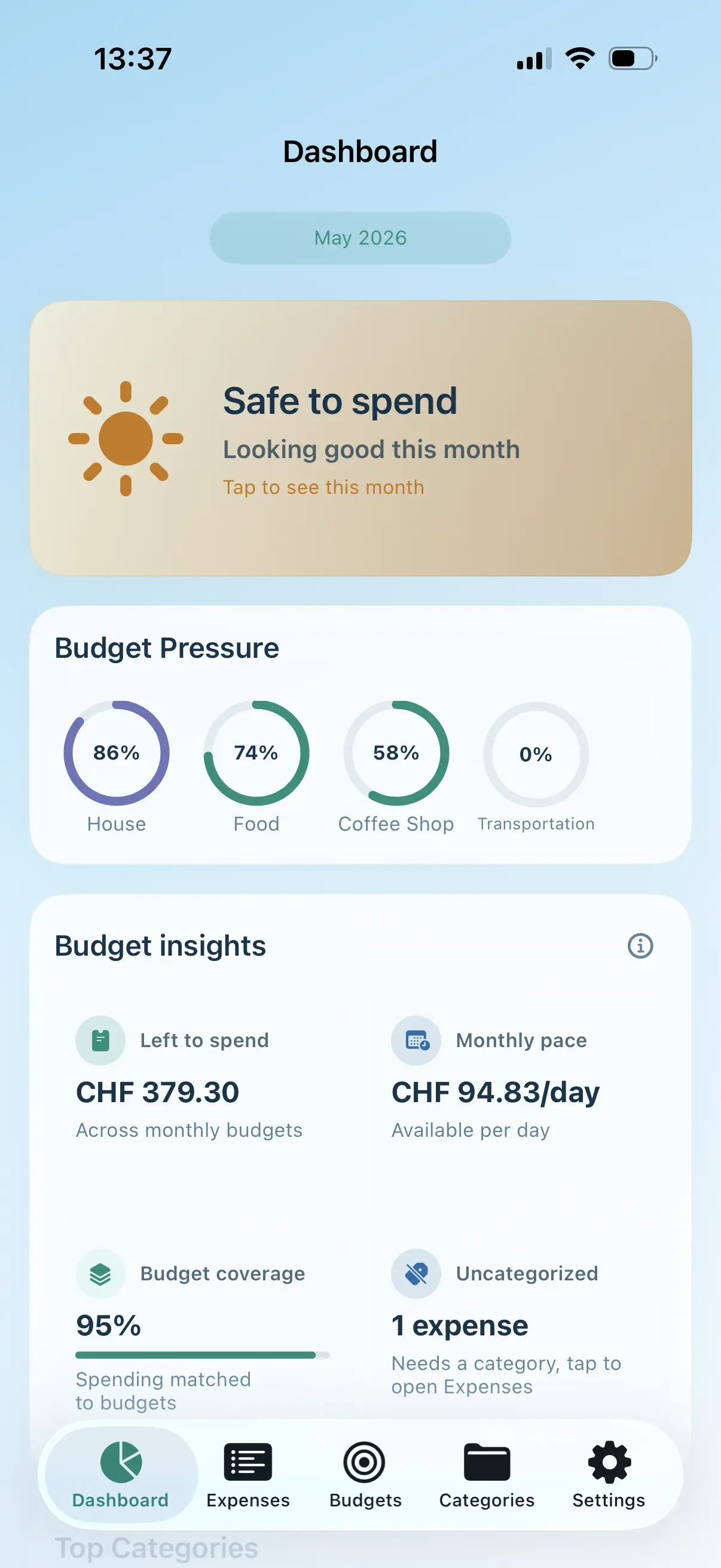
The elegant personal finance app that syncs all your expenses in real-time across your devices. Track your spending, manage category budgets, and monitor your budget health visually.
Nephy brings smart, beautiful, and secure budgeting layouts to your phone, keeping you aligned on what matters.
Monitor your spending speed day by day. Enter your monthly target and adjust the day slider to see your ideal spending pace and remaining allowance.
Type a merchant and watch it classify itself. Nephy matches user-defined keywords (like 'Migros' or 'Spotify') to automatically assign categories and styles, making tracking effortless.
Secure, real-time synchronization of all expenses across your iPhone, iPad, and Mac using native iCloud. No accounts to create, absolute privacy.
Dry numbers are hard to digest. Nephy introduces 'Financial Weather' to translate your current budget limits into sunny, cloudy, or rainy status indicators so you know your financial state at a glance.
Get started quickly and experience visual finance sync built right into Apple's ecosystem.
Create your custom categories (Groceries, Dining, Transport) and assign keyword triggers to detect merchants automatically.
Define your monthly spending limits per category. Keep track of how much you spend to easily stay on budget.
Every expense you add syncs securely across all your devices via iCloud. Access your budgets anytime, whether on iPhone, iPad, or Mac.
Open the dashboard to review your financial health. Sunny weather lets you know you are safe to spend, while showers suggest caution.
Follow these 8 simple steps to automate logging your expenses in Nephy every time you tap to pay with Apple Pay.
Tap Automation, then tap +.
Tap Wallet, then tap the card or cards you use to track expenses.
Check every category. Leave Filter Merchants as it is.
Tap Run Immediately, not Run After Confirmation. Notify When Run is optional.
Tap Create New Shortcut. Search Nephy. Tap Add Expense.
Tap Amount. Scroll to Shortcut Input, tap it, tap it again, then choose Amount.
Tap Title. Scroll to Shortcut Input. Tap it, tap it again, then choose Merchant.
Turn off Show When Run. Tap Done in the top right.
Video edited with Clideo
Take control of your personal finances, track your category spending, and experience beautiful, secure iCloud sync today.